Settings and performance
How to use first-person mode in GTA 6
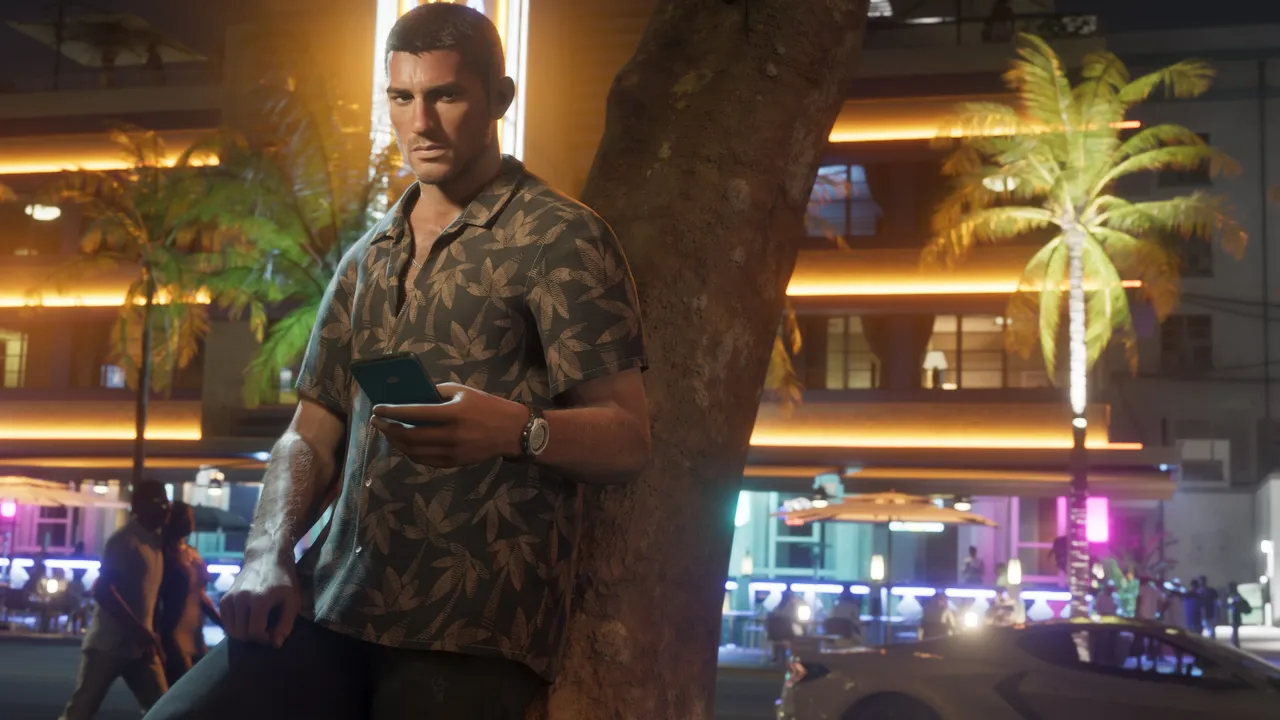
Image: Rockstar Games
GTA 6 has no full first-person camera, but with a scoped weapon you can aim with L2 and press R3 for first-person aiming; opening your phone in a car gives a first-person driving view.
GTA 6 has no full first-person camera, but you can get a first-person view while aiming by fitting a scope to your gun and pressing R3 while you aim.
Unlike GTA 5 and RDR 2, there is no dedicated first-person camera option, and none of the cheats unlock one either. The scoped aiming view is handy for precise shots, but you cannot walk while you are in it. It is meant only for lining up targets.
There is also a workaround for driving. Opening your phone in a vehicle switches the camera to first-person. The phone covers part of the screen, but you can still technically drive this way.
A full first-person mode has not been officially confirmed for a later update or a PC release.
How to do it
- Go to any Ammu-Nation store and talk to the clerk.
- Pick your weapon, open the Attachments menu and buy an Optic.
- Equip the scoped weapon and aim with L2.
- While aiming, press R3 to switch to the first-person view.
- To drive in first-person, hold Up on the D-Pad inside a vehicle to bring up your phone.
Other camera options
The game offers three camera presets you can cycle through by holding Down on the D-Pad. You can also pick your preferred camera height in the settings menu under Settings, Camera.
Send us a screenshot of this from your own game. We check it and show it on this page with your name, so other players know the guide works.
Send a screenshot in TelegramWhat changed (1)
- added camera preset cycling with D-Pad Down and camera settings menu (source: Insider Gaming)
Found something different in the game? Write to [email protected] with a screenshot, and we will check it against our sources and update this page.