Settings and performance
Best aim settings in GTA 6 for casual and realistic play
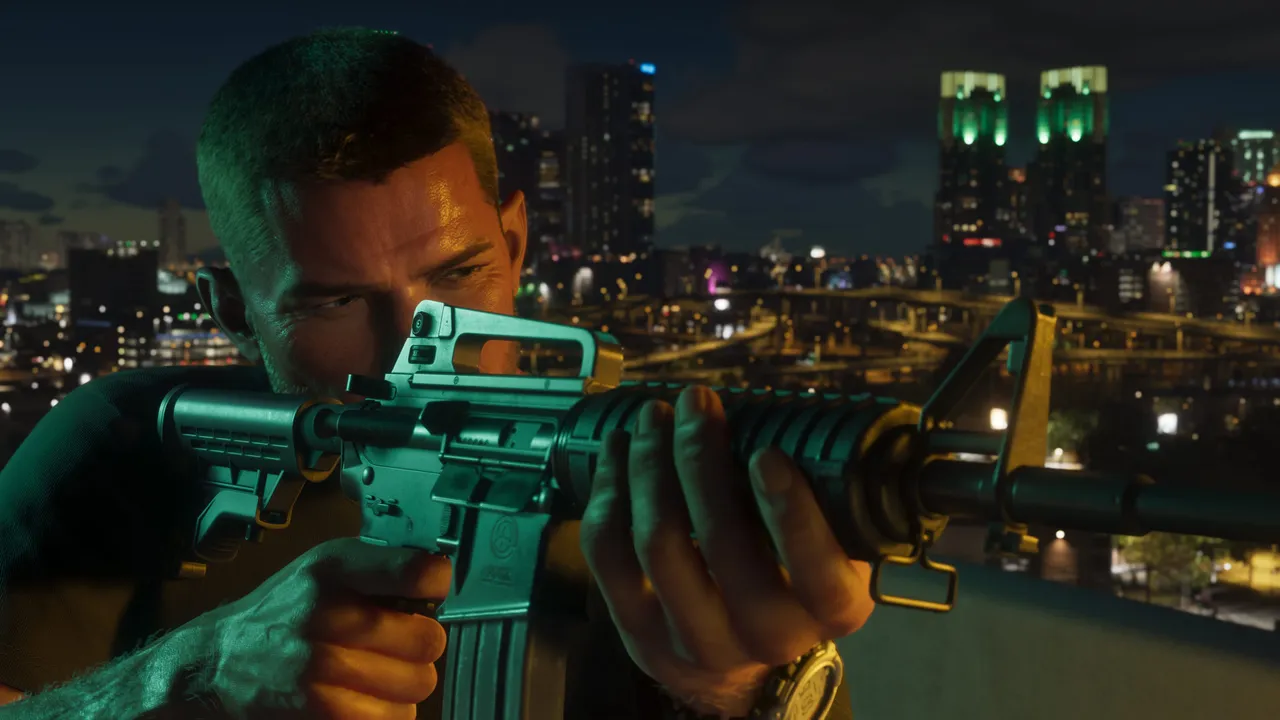
Image: Rockstar Games
Change aim under Settings, Gameplay, Combat: use Lock-On with Lock-On Time 5 for casual play, or Free Aim with Aim Assist 0 and Shooting Assist off for realism.
You can tune GTA 6 aiming in Settings, Gameplay, Combat, choosing Lock-On for easy gunfights or Free Aim with assists off for a realistic challenge.
How to do it
- Open the pause menu and choose Settings.
- Go to the Gameplay tab.
- Adjust the aim options listed first under Combat.
Targeting modes explained
- Lock-On: snaps to a valid target near the reticle when you aim with L2 or LT.
- Partial: no instant lock, but the reticle slows as it passes over a target.
- Free Aim: no aim slowdown, though Shooting Assist still gives a quick lock on nearby enemies unless you turn it off.
Casual settings
- Targeting: Lock-On
- Aim Assist Strength: 3 (barely matters with Lock-On)
- Lock-On Time: 5 (raise to max if moving targets give you trouble)
- Lock-On Target Switch: On (flick the right stick to jump to another target)
- Shooting Assist: On
- Drive-By Assist: On (auto-aims at the closest target while driving)
- Quick Draw: On
Realistic settings
- Targeting: Free Aim
- Aim Assist Strength: 0
- Shooting Assist: Off
- Drive-By Assist: Off
- Quick Draw: On
Quick Draw lets you hold aim and press fire (R2 or RT) to pull out your last weapon without the weapon wheel, so it is worth keeping on either way.
Removing the reticle
For an extra challenge, open the UI tab, find Reticle Shape and set it to None.
Send us a screenshot of this from your own game. We check it and show it on this page with your name, so other players know the guide works.
Send a screenshot in TelegramFound something different in the game? Write to [email protected] with a screenshot, and we will check it against our sources and update this page.