Best GTA 6 settings to change for a better experience
Switch to the Classic preset for old-school controls, keep Targeting on Partial, turn on subtitles and speaker names, and lower motion blur and camera shake if you get motion sickness.
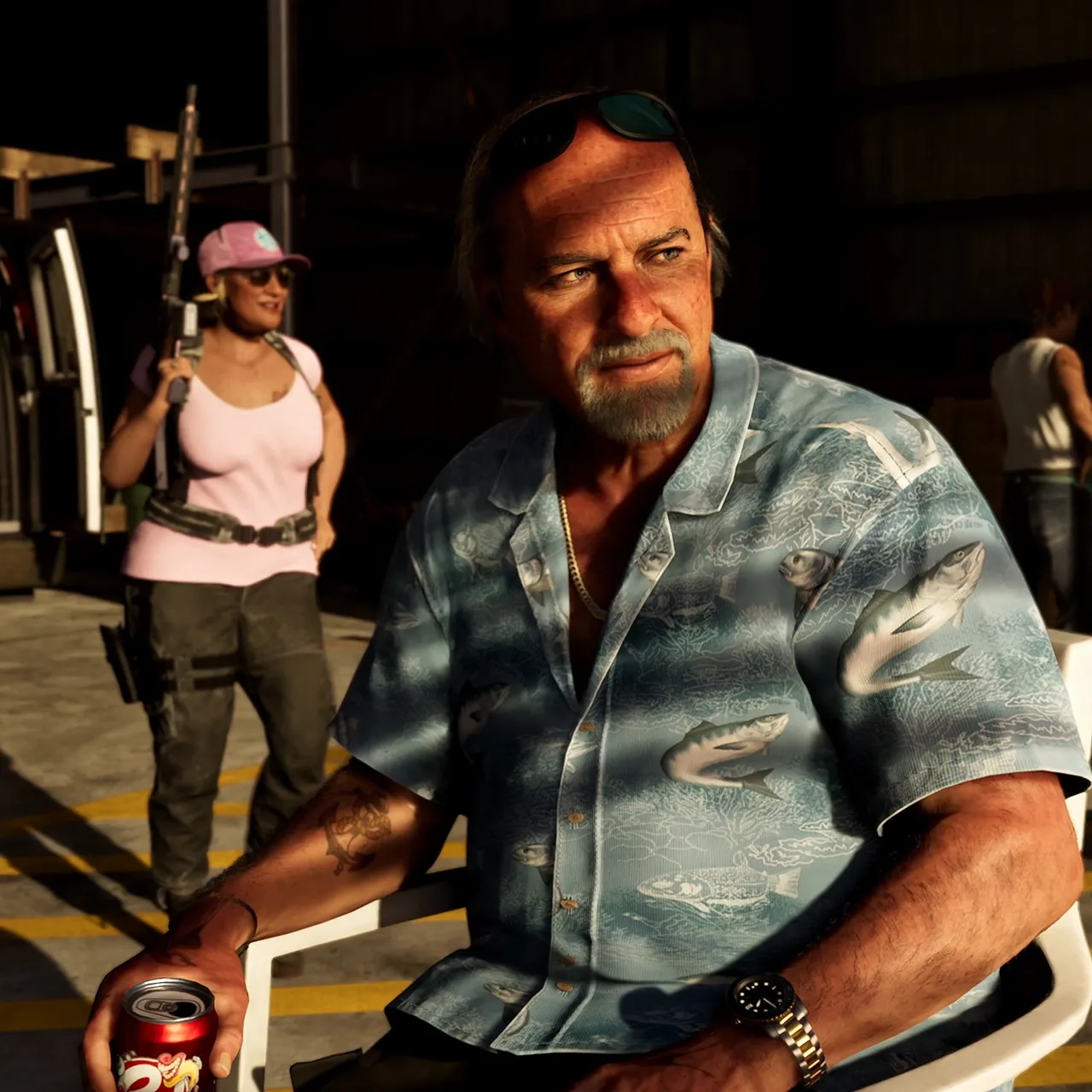
Most players should keep the default controls, but a few settings can make GTA 6 easier to play and more comfortable. The Classic controller preset brings back the older sprint button, and most other changes are about aiming, movement, subtitles and comfort.
How to do it
- Open Settings, Controls and set the controller preset to Classic if you want the older Sprint button. Keep the default preset for the best overall feel.
- Open Settings, Gameplay, Combat and keep Targeting on Partial. Lock-On is better for a classic feel, and Free Aim is better suited to mouse and keyboard.
- Leave Aim Assist at maximum when using Partial or Lock-On.
- Set Movement Speed to Jog or Run instead of Walk. Set Combat Speed to Run and leave Stand and Sprint off to avoid breaking a crouch.
- Open Settings, UI, Subtitles and Captions and turn Subtitles and Speaker Names on. Subtitles can reveal side missions from passing NPCs.
- Open Settings, Display, Visual Effects and lower Motion Blur Strength. If you get motion sickness, turn Camera Shake off and lower Camera Bob in Settings, Comfort.
- In Settings, Audio, Volume, lower the Music slider if it covers dialogue.
If you stream or upload gameplay, turn on Mute Licensed Music under Settings, Audio, Setup to avoid copyright flags.
Send us a screenshot of this from your own game. We check it and show it on this page with your name, so other players know the guide works.
Send a screenshot in TelegramNew guides every day: Telegram · Bluesky · RSS
Found something different in the game? Write to [email protected] with a screenshot, and we will check it against our sources and update this page.