Beginner tips
How to use the phone in GTA 6: apps, camera and settings
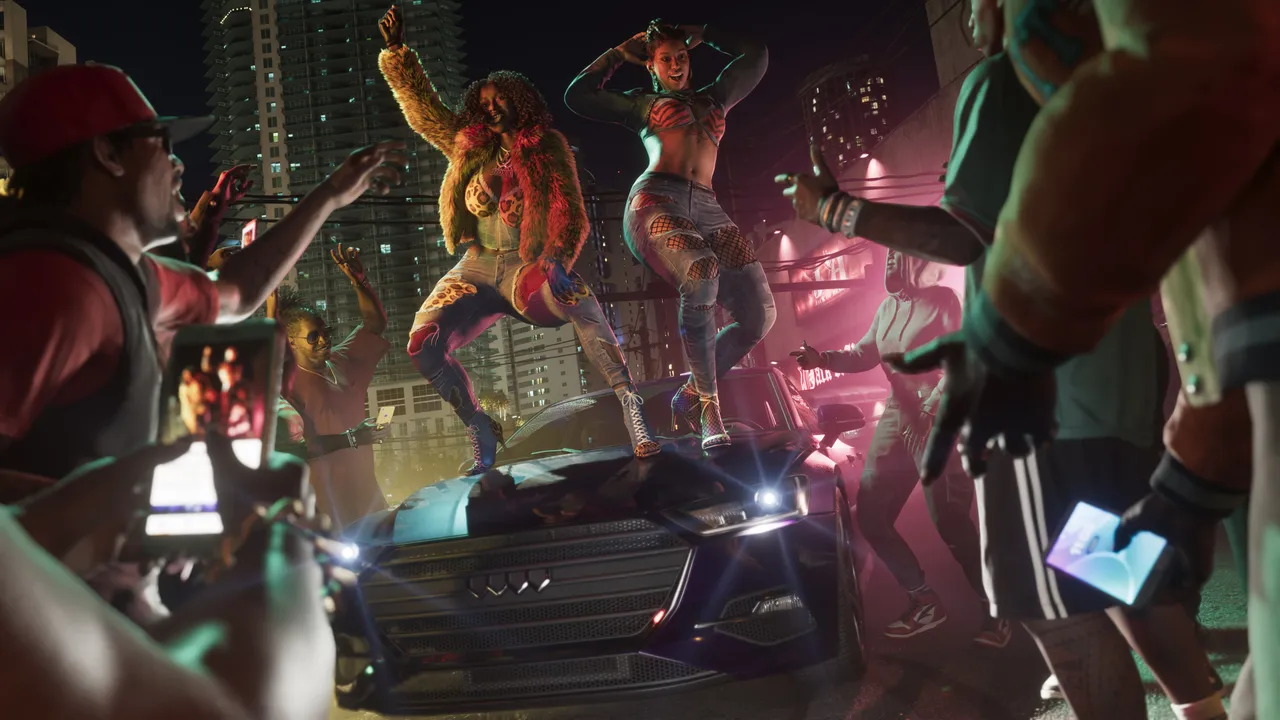
Image: Rockstar Games
Press D-Pad Up to pull up your phone in GTA 6; it holds apps like WhatUp, RydeMe, BuckMe, Camera and WAiNK, and Settings lets you pick from 11 ringtones and 25 wallpapers.
Open your phone in GTA 6 by pressing D-Pad Up, which gives you access to messaging, contacts, camera, banking, fast travel and more.
The phone first becomes available in the prologue, as soon as you control Jason on the boat. Opening it does not pause the game, so avoid using it while driving or during a fight. More apps get added as the story moves on, such as the BuckMe banking app.
Phone apps
- WhatUp: send and receive text messages with contacts. How you answer Lucia, or whether you answer at all, can raise or lower your relationship with her.
- RydeMe: paid ride-hailing app for fast travel across the map.
- Contacts: call people in your contact list.
- Camera: take photos with the rear camera or selfies with the front camera.
- BuckMe: send and receive money and make purchases.
- Fitness: track your physical stats with personal goals.
- Gallery: view photos taken with the phone camera.
- Snapmatic: social media app with online videos and images. Some posts show a location you can add to your map: open the options menu on the post and pick the location option, for example to mark a new fishing spot.
- News: latest news from Leonida.
- Weather: current weather and forecasts.
- WAiNK: scanner that shows details about a targeted vehicle.
How to do it
- Press D-Pad Up to bring up the phone.
- Pick an app to text, call, take photos or travel.
- To personalize the phone, open Settings on the phone by selecting the gear icon.
- Select Ringtone and choose one of 11 ringtones; each plays once when you highlight it, each also changes the controller vibration pattern for incoming calls, and on PS5 the ringtone plays through the DualSense speaker.
- Choose one of 25 wallpapers. Scroll to the bottom of the list for landscape shots and an image of Jason and Lucia together. Photos you take yourself cannot be set as a wallpaper.
Send us a screenshot of this from your own game. We check it and show it on this page with your name, so other players know the guide works.
Send a screenshot in TelegramWhat changed (1)
- added gear icon settings path, wallpaper details and Snapmatic map locations (source: Game Rant)
Found something different in the game? Write to [email protected] with a screenshot, and we will check it against our sources and update this page.