FAQ
How to use photo mode in GTA 6
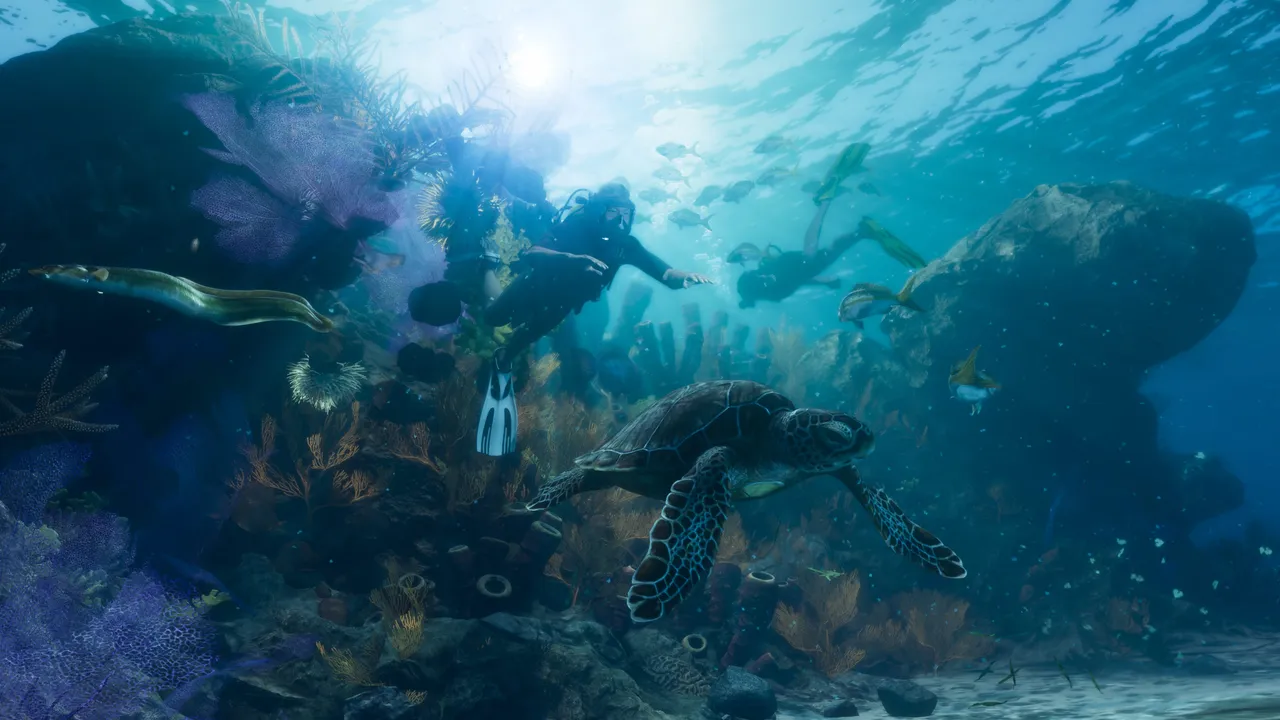
Image: Rockstar Games
Pause GTA 6 and press Square on PS5 or X on Xbox to open photo mode with camera, lighting and filter tools; press D-Pad Up and open Camera on the phone for selfies.
GTA 6 ships with a full photo mode at launch, and you open it from the pause menu with a single button press. It becomes available as soon as you take control of Lucia in the prologue.
How to do it
- Pause the game at the spot you want to capture.
- Press Square on PS5 or X on Xbox to enter the photo studio.
- Frame the scene, then adjust the camera and effects before saving your shot.
Camera options
- Change the aspect ratio to suit the shot, with eight ratios to choose from.
- Adjust aperture and depth of field to control focus and background blur.
- Set the camera movement speed and roll (tilt) angle.
- Turn on a grid to help line up your composition.
- Raise the field of view up to 48.5 degrees.
- Set the focus distance, and use the focus guide to see which parts of the scene are sharp.
- Hide or show your current character, Jason or Lucia.
Lighting tools
You can place up to five extra light sources into the scene, including:
- Spotlights
- Floodlights
- Softboxes
Post-processing
A set of filters and other post-processing tools lets you change the look of the finished image.
- Effects sliders: exposure, contrast, highlights, shadows, saturation, sharpness, grain, temperature, tint, gamma, lens flare, bloom and chromatic aberration.
- Filters: 17 cosmetic filters to pick from.
- Overlays: vignette, color isolation, and a toggle for gameplay effects such as the low health indicator.
Smartphone camera and selfies
Once you take control of Jason, you can also take photos with the in-game phone.
- Press D-Pad Up to bring up the phone.
- Open Camera, the third icon in the top row.
- Use the rear camera or switch to the front camera for selfies.
- Both cameras: take photo, toggle the flash, and open the gallery.
- Rear camera: 3x3 grid, zoom up to 5x and the same 17 filters.
- Front camera: choose from six poses and seven expressions for Jason, and change your partner’s pose.
Current limitations
At launch you cannot pose Jason and Lucia or change their facial expressions in photo mode, so you may need to wait for a moment when both characters look the way you want. Scenic spots such as the water near Ocean Beach make good backdrops, especially when the light hits the sea well.
Send us a screenshot of this from your own game. We check it and show it on this page with your name, so other players know the guide works.
Send a screenshot in TelegramWhat changed (1)
- added full camera/effects options, light limit, filter count and smartphone selfie camera section (source: Game Rant)
Found something different in the game? Write to [email protected] with a screenshot, and we will check it against our sources and update this page.